
Onboarding promises a fast start: paste your site, and within minutes you’re practicing against your own products. What it doesn’t do is quietly train your team on your entire catalog the moment it’s scraped. If you sell more than a handful of products, most of your catalog starts out in a holding state — and knowing exactly how that state works is the difference between a knowledge base that actually covers what your reps sell and one that’s quietly stuck at whatever got detected on day one.
What actually gets auto-approved
At first onboarding, EOS automatically approves up to five core products — the customer-facing offerings in your catalog, as opposed to supporting or ancillary items. If your catalog only has two core products, you get two approved automatically; there’s no padding to hit five. If you have more than five, the system ranks and selects up to five, and the rest land in a pending state.
This auto-approval only happens once, during that first onboarding run. It’s not a standing rule that quietly approves every new item that shows up later — anything pending after that point needs a human to actually approve it.
Core vs. supporting: decided for you, but visible
Behind the scenes, every product gets classified as either core (a real, sellable offering) or supporting (a sub-component or accessory). You don’t do this classification yourself — it happens automatically during setup — but it’s not hidden from you either. Supporting items get a visible “Supporting” badge in your product list, and the list defaults to showing core products only, with a toggle to include supporting items when you want the full picture.
Only core products are eligible for that initial auto-approval. Supporting items always start pending, regardless of catalog size.
Getting through the rest of your catalog
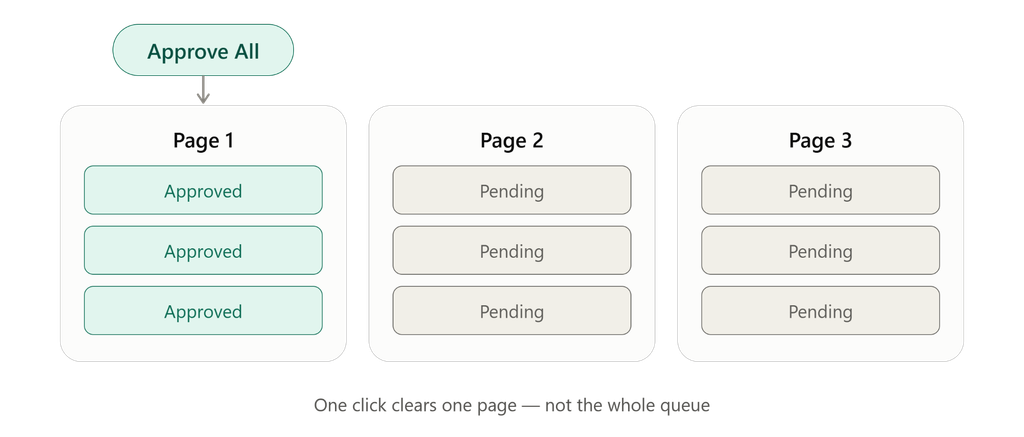
Everything that didn’t make the initial cut sits on a Pending Approval tab, and you’ve got two ways to work through it: approve or reject items one at a time, or hit “Approve All” to clear everything on the current page in one action.
That second option is worth understanding precisely, because it’s easy to assume it does more than it does. Approve All clears the current page of your pending list — not your entire pending queue. If you’re working through a catalog with a few hundred pending items spread across multiple pages, you’ll be hitting Approve All once per page, not once total. For a small catalog this is a non-issue; for a large one, it’s a real, repeatable part of your workflow, not a one-click finish line.
Rejecting is just as available as approving. If a pending item genuinely isn’t worth training your team on — a discontinued accessory, a duplicate entry, whatever doesn’t belong — reject removes it from the queue entirely. Nothing has to sit in limbo forever; every pending item has a real endpoint, either approved or dismissed.
There’s no hard ceiling on how many products can be pending or how large a single bulk action can be. A very large catalog just means more pages to work through and more time spent reviewing — a practical constraint, not a fixed limit anyone will hit a wall against.
See how fact-grounded verification scales to a real catalog. Our 12-page report, Beyond Roleplay: The Rise of the Sales Knowledge Engine, covers the architecture behind claim extraction and verification — the same engine that has to keep up with your product list as it grows. [Download the whitepaper →]
What happens when you edit an approved product
Products change. When you edit one that’s already approved, saving it kicks off a background knowledge sync — refreshing the underlying facts and search data that verification actually checks claims against. There’s no fixed timer on this; it depends on the size of what’s being resynced and what else is in the processing queue at the time, and it’s usually a matter of minutes, sometimes a bit longer.
One thing worth knowing: this is a full resync, not a targeted update to just the field you changed. Edit one price and the whole product’s knowledge assets get refreshed, not just that price. And importantly, the product doesn’t go offline while this happens — it stays approved, stays in your catalog, and practice sessions and quizzes keep working against it the whole time. Very recent edits might take a little while to be fully reflected in verification, but there’s no maintenance-mode gap where the product simply isn’t usable.
Where products actually come from — and one shortcut
Most products land in your catalog the same way: extracted from your website scrape or from an uploaded document, landing pending, going through the same approve/reject flow either way. Your catalog shows a source label so you can tell which came from where, but the review process itself doesn’t differ by source.
There’s one exception worth knowing about. If you manually add a product directly in the interface rather than letting it get extracted, it’s saved as approved immediately — no pending queue, no review step. That’s a genuine shortcut when you already know exactly what you want in your catalog and don’t need the system to find it for you.
Keeping an eye on where things stand
You don’t have to open every product individually to know how your catalog review is going. The Knowledge Hub home view shows approved and pending counts at a glance, and the Pending Approval tab itself carries a badge showing how many items are waiting. If that number is climbing faster than anyone’s reviewing it, it’s visible before it becomes a real gap.
One role note worth knowing if you’re setting up who can do what: approving or rejecting products requires admin or owner access. Trainers might be able to see the review tabs, but they can’t actually act on them — that’s reserved for whoever’s running the org.
The takeaway
A fast onboarding start and full catalog coverage aren’t the same thing, and they’re not meant to be — five auto-approved products gets you practicing quickly; the rest is a deliberate, reviewable process built for exactly the catalogs too large to fully vet in one pass. Knowing where that line sits, and how to move things across it efficiently, is what keeps a large catalog from quietly becoming a knowledge base that only covers what got lucky on day one.
See your own catalog become a knowledge check. EOS turns your product documentation into practice and provable knowledge — claim extraction, fact-grounded verification, and auto-generated quizzes that reveal what reps actually know. Start free with up to 5 seats at app.akaeos.com, or [download the full whitepaper].

Leave a Reply